Account settings
Account settings belong to you, not to an organization: they apply in every organization you are a member of. Open them from your avatar menu, top right of the Organization side: Account settings.
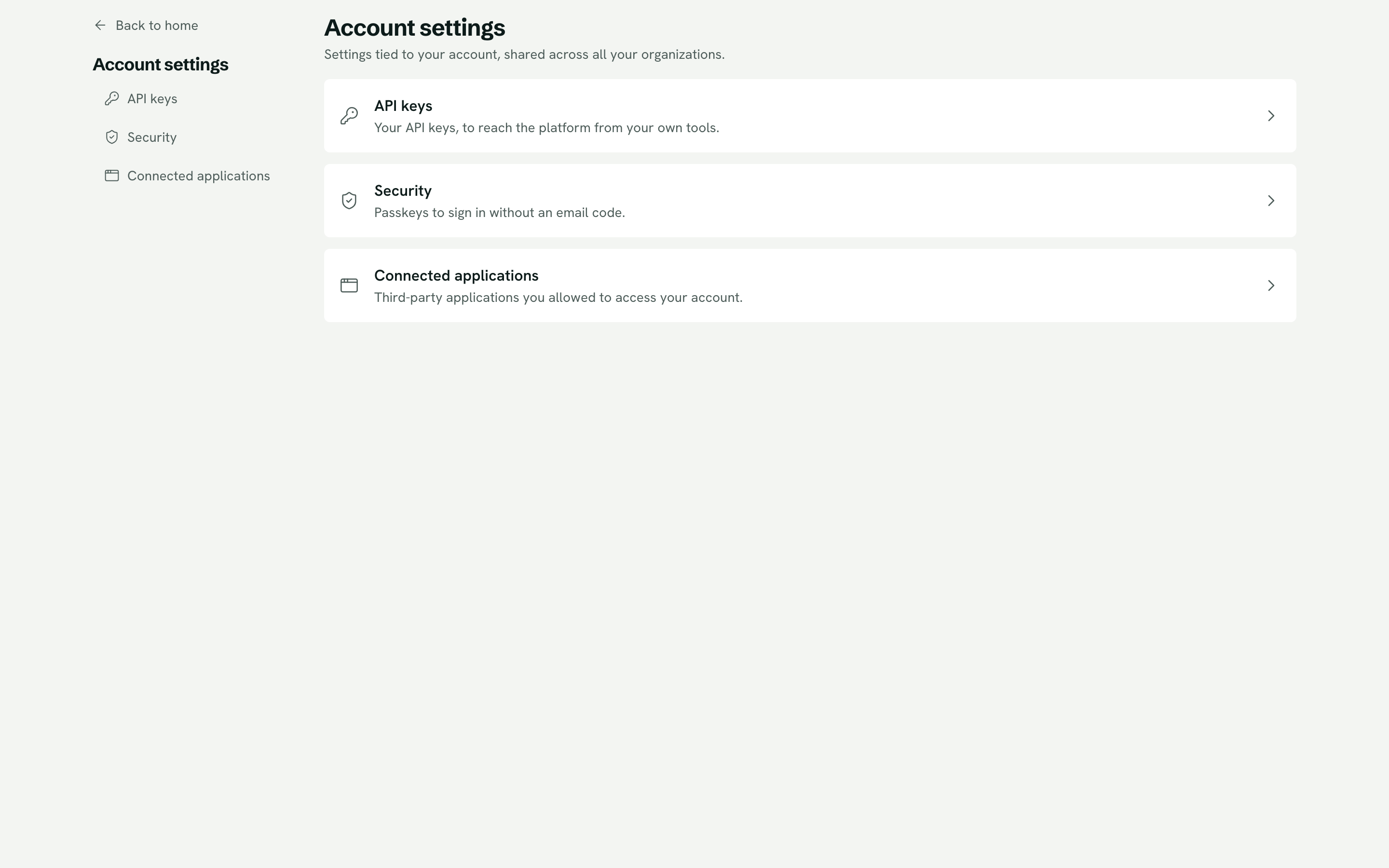
API keys
An API key lets your own scripts and tools call Breign as you, with your permissions.
- Open API keys.
- Click Create a key, give it a Name (for example "My export script") and confirm.
- Click Copy the key and store it somewhere safe. It is shown only once.
To revoke a key, click Delete the key and confirm. Any integration using it stops working immediately.
The same page shows a ready-to-copy command to edit your agents from Claude Code. See Use Breign from Claude Code.
You don't need an API key for Breign Mate or the Breign CLI: they sign in through your browser. Keep API keys for scripts, servers and containers.
Passkeys
A passkey lets you sign in with your fingerprint, face, PIN or a security key instead of an email code. This section only appears when passkeys are enabled on your platform (they are usually off when your company uses single sign-on).
- Open Security.
- Click Add a passkey, give it a Name (for example "Work MacBook").
- Confirm with your device when your browser asks.
To remove one, click Delete passkey next to it.
Connected applications
Connected applications lists the third-party applications you allowed to use your Breign account ("Sign in with Breign"), with the date you authorized them. Click Remove access to withdraw it; the application will have to ask for your consent again.
Authorize Breign Mate, the CLI or another application
When you sign in to Breign Mate, the Breign CLI or a third-party application, Breign opens a page asking Authorize {app}?, with what the application will be able to do. Click Authorize only if you just started signing in from that application; otherwise click Deny.
For the CLI on a machine without a browser, the terminal shows a code: open the /device page of Breign, enter it in Device code, click Continue, then Authorize. See Breign CLI.
If something goes wrong
- "To add a passkey, sign in again: your session is more than 10 minutes old.": sign out, sign in again, and add the passkey right away.
- "This passkey is already registered on your account.": this device already has a passkey for Breign.
- "Unknown, expired or already used code." on the device page: the code is wrong or too old. Run
breign loginagain and use the new code. - "Connected applications are not available on this platform.": third-party sign-in isn't enabled on your platform.