Sign in to Breign
Breign signs you in without a password. Depending on how your platform is set up, you enter a one-time code sent to your email, use a passkey, or sign in with your company account (single sign-on, for example Microsoft Entra ID).
Before you start
- Your email address must already belong to a Breign organization. If it doesn't, ask an administrator to invite you. See Users, roles and permissions.
Sign in with an email code
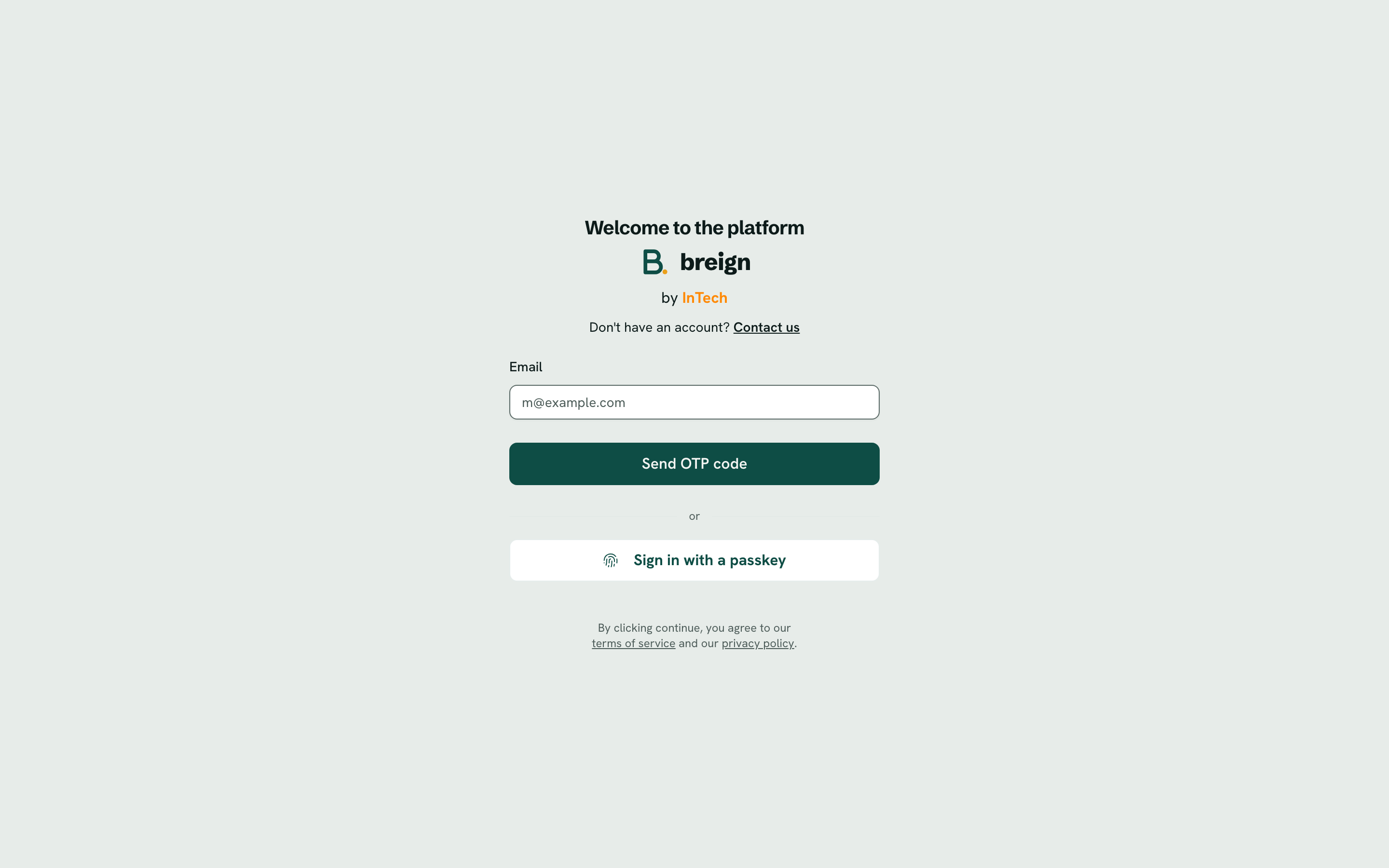
- Go to the Breign login page.
- Enter your Email address.
- Click Send OTP code. You see "OTP code sent by email".
- Copy the 6-digit code from the email into the OTP Code field.
- Click Verify code.
Sign in with a passkey
If passkeys are enabled on your platform and you have added one (see Account settings):
- On the login page, click Sign in with a passkey.
- Confirm with your device: fingerprint, face, PIN or security key.
Sign in with your company account
If your organization uses single sign-on, there is no form:
- Go to the Breign login page. It stays blank for a moment while Breign sends you on.
- Sign in on your company's sign-in page, as you usually do. If you're already signed in to your company account, this can happen without you doing anything.
- You come back to Breign, signed in.
If you open the login page while you're already signed in, Breign takes you straight in: you're never asked for an email code on top of your company sign-in.
Choose your organization
- If you belong to a single organization, you land directly on its home page.
- Otherwise, pick the organization in the list (you can search it) and confirm.
To change later, open your user menu (bottom of the sidebar) and choose Switch organization.
Result
You land on My Breign, the home page of your organization. See Find your way around.
If something goes wrong
- "Invalid code": the code was mistyped or has expired. Click Send OTP code again and enter the latest code.
- You didn't get the email: check your spam folder and the address you typed, then request the code again after a moment.
- "Account locked" or "Your account doesn't have access to the platform.": your account can't sign in right now. Use the Contact us link on the login page, or contact your administrator.
- "Passkey sign-in failed.": try again, or sign in with an email code. The passkey may have been deleted from your account.
- The login page stays blank (single sign-on): Breign couldn't send you to your company's sign-in page. Reload after a moment; if it stays blank, contact your administrator.
- You signed in with your company account but can't get into Breign: your account isn't allowed on the platform (for example, it's locked, or your company hasn't given you access to Breign). Contact your administrator.
- "Access denied" on the home page: your role doesn't include the Chat with agents permission. Ask an administrator.