Find your way around
Breign has two sides:
- My Breign is where you work: your conversations, your inbox and your workspaces.
- Organization is where agents and the platform are configured: agents, tools, knowledge, AI engines, members and settings.
Switch between them with the My Breign | Organization switch at the bottom of the sidebar. Everyone sees the switch; what you can do on the Organization side depends on your permissions.
My Breign
The sidebar, from top to bottom:
- New conversation: back to the home page, ready to write to an agent.
- Search: type an agent, a workspace or a ticket key (for example
BRN-142, then Open ticket BRN-142). Agents you haven't pinned appear under Other agents, with a Pin button. - Home: what is waiting for you, your recent conversations, the agents at work on your tickets, and your workspaces.
- Inbox: questions, approvals and reviews that agents and colleagues need from you. The orange counter shows how many. See Handle your inbox.
- Workspaces: your pinned (or most recent) workspaces, and All workspaces. See Workspaces.
- Pinned agents: the agents you talk to most. Each row shows whether the agent is Writing a reply… or Waiting for your reply, and a badge for unread messages. The arrow next to an agent lists its recent sessions.
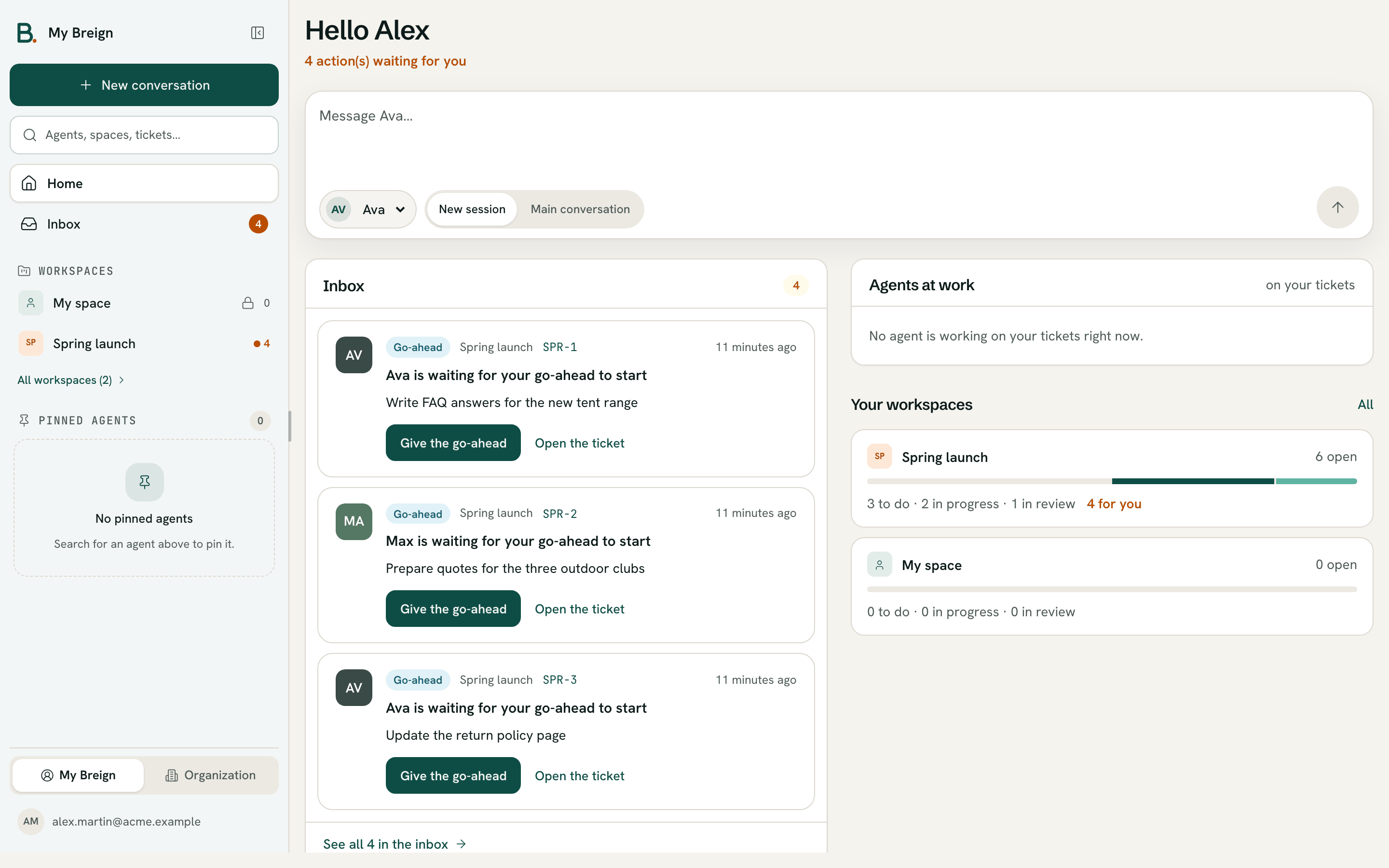
On a phone, the sidebar opens from the menu button, and tabs at the bottom give quick access to Home, Agents, To do and Spaces.
Organization
The sidebar groups configuration pages in sections. You only see the pages your permissions allow.
| Section | Pages |
|---|---|
| Agents | My Agents, Fleets (if enabled), Automations, Knowledge, Tools, Skills |
| Execution | AI Engines, Execution nodes (if enabled) |
| Oversight | Metrics, Moderation, Support (if enabled) |
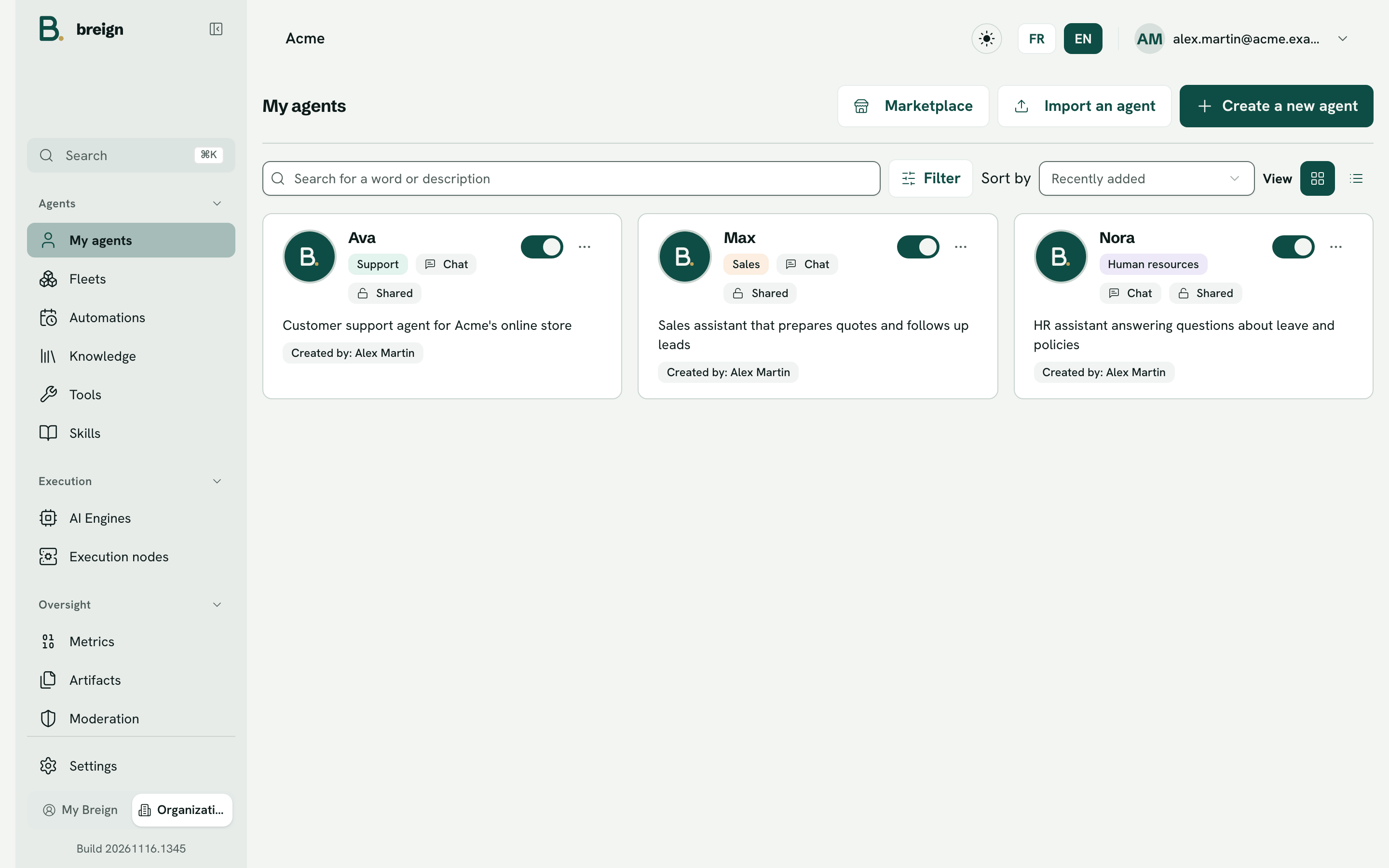
Settings, at the bottom, opens the organization settings: Users, Agent roles, User roles & permissions, Integrations, Applications, AI Gateway and Agent limits.
Press ⌘K (Mac) or Ctrl K (Windows, Linux), or click Search, to jump to any page by name.
The top bar shows the organization name, the EN / FR language switch and your avatar menu: Switch organization, Account settings, Sign out.
Your account
Account settings holds what belongs to you rather than to an organization: your API keys, passkeys and the applications you allowed to use your account. See Account settings.
If something goes wrong
- "Access denied" on a page: your role doesn't include the permission that page needs. Ask an administrator.
- A menu entry described here is missing: either your role doesn't allow it, or the feature isn't enabled on your platform (Fleets, Execution nodes and Support are optional).