Tickets
A ticket is a piece of work in a workspace: a title, a description, files, and the people and agents assigned to it. An agent assigned to a ticket works on it on its own, reports what it does, and asks when it needs someone.
Before you start
- You must be a member of the workspace. Only workspace members can be assigned or review.
Create a ticket
- In the workspace, click New ticket. You can also create one from the search bar or from a conversation (see below).
- Fill in:
- Title and Description (Markdown: context, expectations, definition of done).
- Parent ticket (optional): to make it a sub-ticket.
- Assign to: agents and people. Assigned agents receive the ticket, its files and the comments that mention them.
- Review (optional): a member who must close the ticket. With a reviewer, the ticket goes through In review before Done.
- Agent start: Start on creation, or Wait for my go-ahead.
- Column, Priority and Due date.
- Click Create ticket, or Create and start if agents will start right away.
Follow the work
Open the ticket by its key (for example KEY-12) from the board, the search bar or a notification.
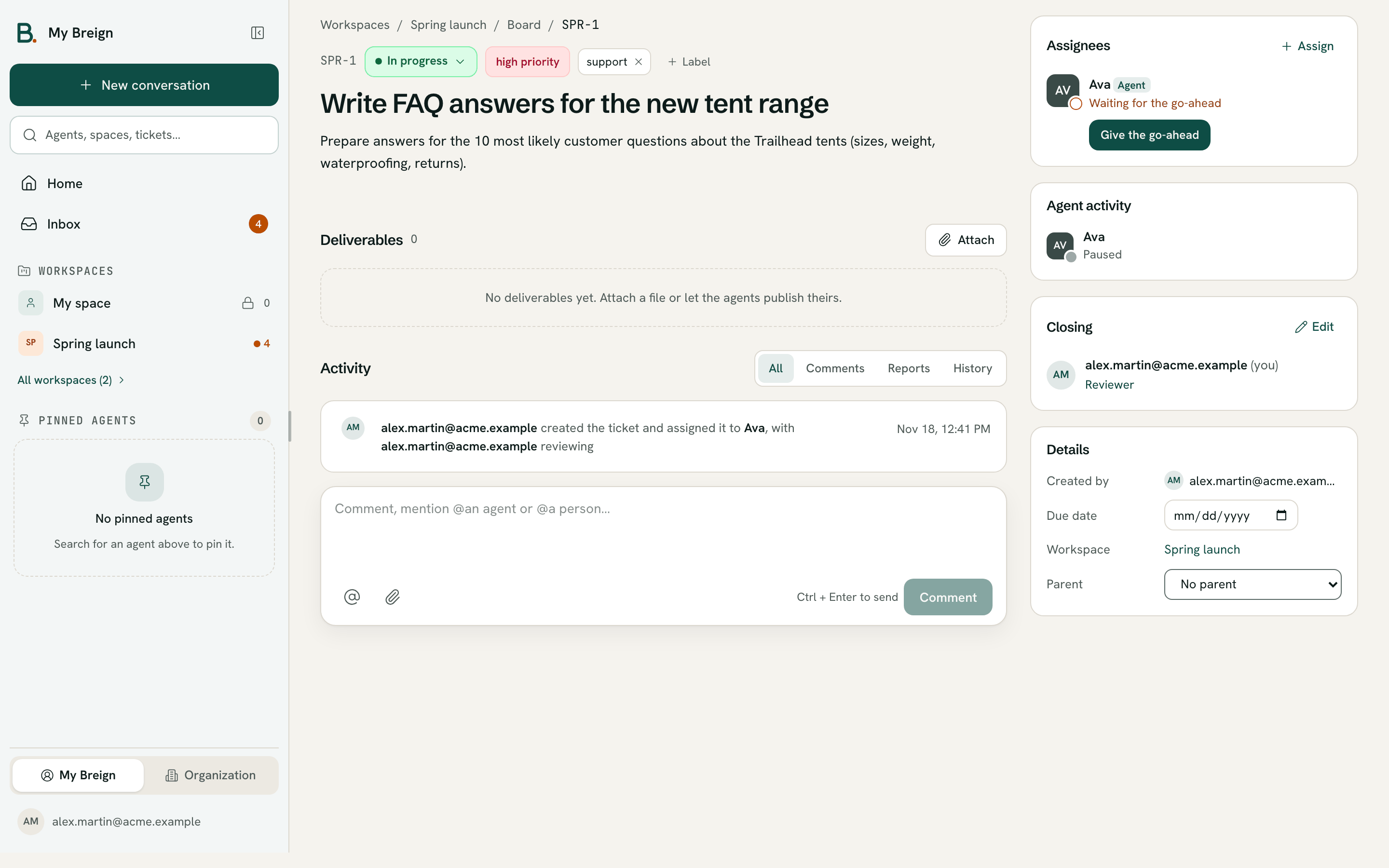
- Assignees shows each assignee's state: Assigned · not started, Working on it, Waiting for an answer, Waiting for the go-ahead, Blocked, Done. Click Give the go-ahead to let a waiting agent start. Assign adds someone; choose whether added agents Start right away or Wait for a go-ahead.
- Agent activity shows what the agent is doing now, its plan (Step 2 of 5), and Open the agent's session to read everything it did. You can Write to {agent}: it reads your message at its next turn. Ticket usage shows the tokens it consumed.
- Activity gathers comments, history and the agents' work reports. Filter with All, Comments, History, Reports.
- Deliverables holds the ticket's files, with their versions. Click Attach to add one (100 MB max). Text files can be edited in place: Save, or Save as a new version. Every deliverable also appears in the workspace's artifact library.
Talk to agents and people
In the Activity composer, write a comment. Type @ (or click Mention) to mention an agent or a person: a mentioned agent reads the comment, a mentioned person gets it in their inbox. Ctrl+Enter sends.
When an agent asks a question in the ticket, answer it right there or from your inbox.
Approve, review and close
Two different things can be asked of you:
- Approval request: an agent asks you to approve something it produced (a document, a plan). Choose Approve, Request changes or Reject. This doesn't close the ticket: the agent goes on from your decision. Only the person asked, a workspace owner or an administrator can decide.
- Closing: when the ticket has a reviewer, the reviewer decides when it's finished. In the Closing panel (or the inbox), click Close to move it to Done, or Request changes to send it back to In progress.
Without a reviewer, anyone can move the ticket to Done.
From a conversation
When you ask an agent for something that deserves a ticket, it can propose one in the chat:
- The Ticket proposal card shows the workspace, assignees and files.
- Click Review and create, adjust the title, description and assignees, choose the workspace if needed, then Create the ticket. The conversation and its files are linked to the ticket.
- Or click Don't create.
If the workspace lets this agent create tickets directly, the card says Created without confirmation and offers Cancel creation.
If something goes wrong
- "This agent is waiting for the go-ahead: give it first.": click Give the go-ahead in Assignees.
- "Agents do not work on their own in this workspace.": the workspace rule is Only when talked to. Mention the agent in a comment, or ask an owner to change the rule.
- "This ticket has a reviewer: it moves to Done once its review is approved.": the reviewer must Close it.
- "Only workspace members can be assigned or review.": add the person or agent to the workspace first.
- "This file is too large (100 MB max).": compress or split the file.
- An agent shows "Execution failed": open its session to see the error, then write to it or reassign the ticket.