Workspaces
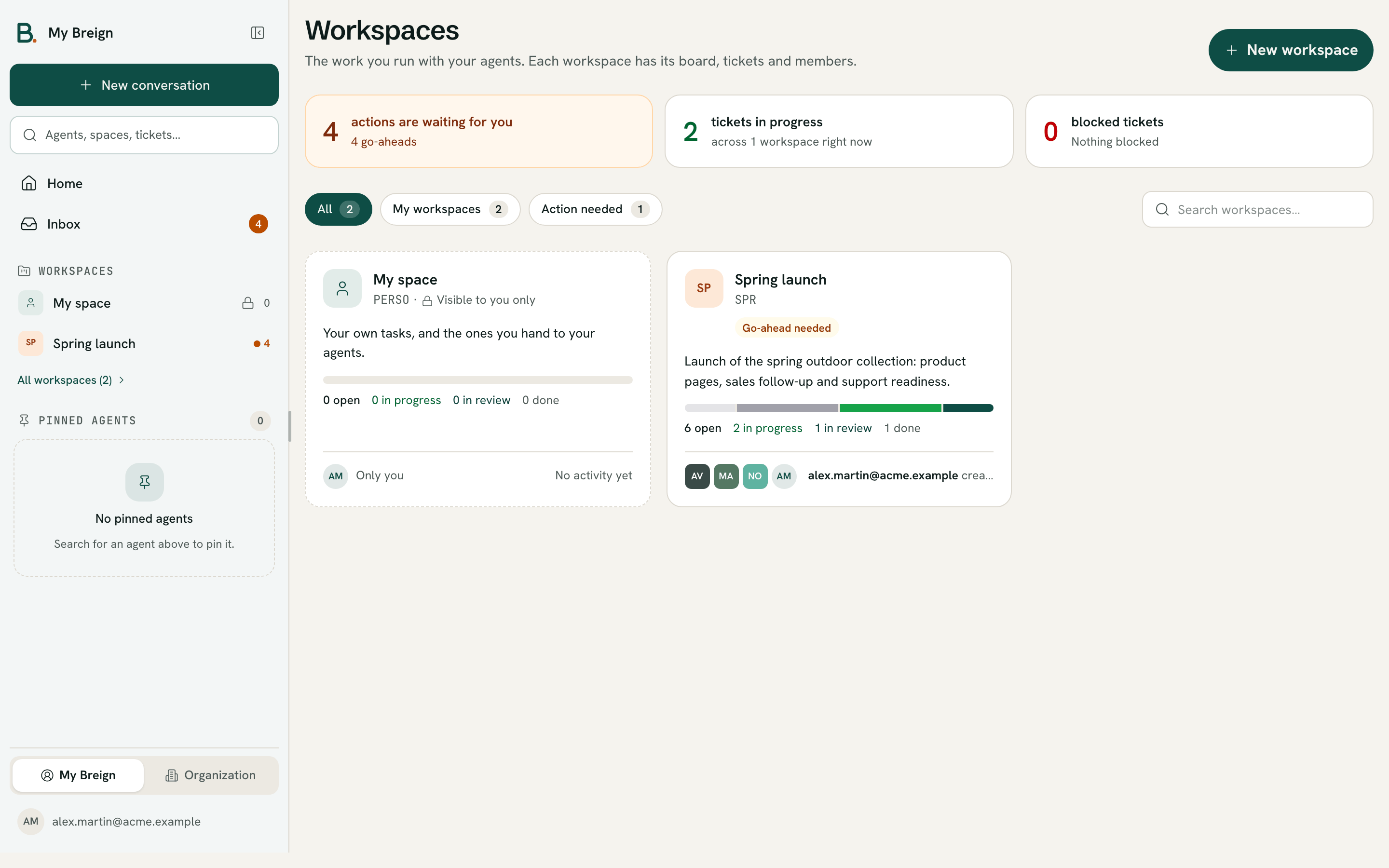
A workspace brings together people, agents and a shared board of tickets around one topic: a project, a team, a client. Agents in a workspace receive tickets, work on them on their own, and come back to people when they need an answer, an approval or a review.
Before you start
- Workspaces must be enabled on your platform. If Workspaces is missing from the My Breign sidebar, they aren't.
- Add the agents you want to work with: they must exist and be visible to you. See Create an agent.
Create a workspace
- In My Breign, click All workspaces, then New workspace.
- Fill in:
- Name.
- Prefix: 2 to 10 capital letters or digits, starting with a letter. Tickets are numbered with it (
KEY-1,KEY-2…). It cannot be changed later. - Description and Due date, optional.
- Members: add agents and people. You are added as workspace owner.
- Set the rules:
- Ticket creation by agents: With a member's confirmation (the agent proposes, someone confirms in the inbox) or Directly, without confirmation.
- Starting an assigned ticket (default): Immediately, unless a go-ahead is requested, or After a member's go-ahead.
- Click Create workspace.
Find your way in a workspace
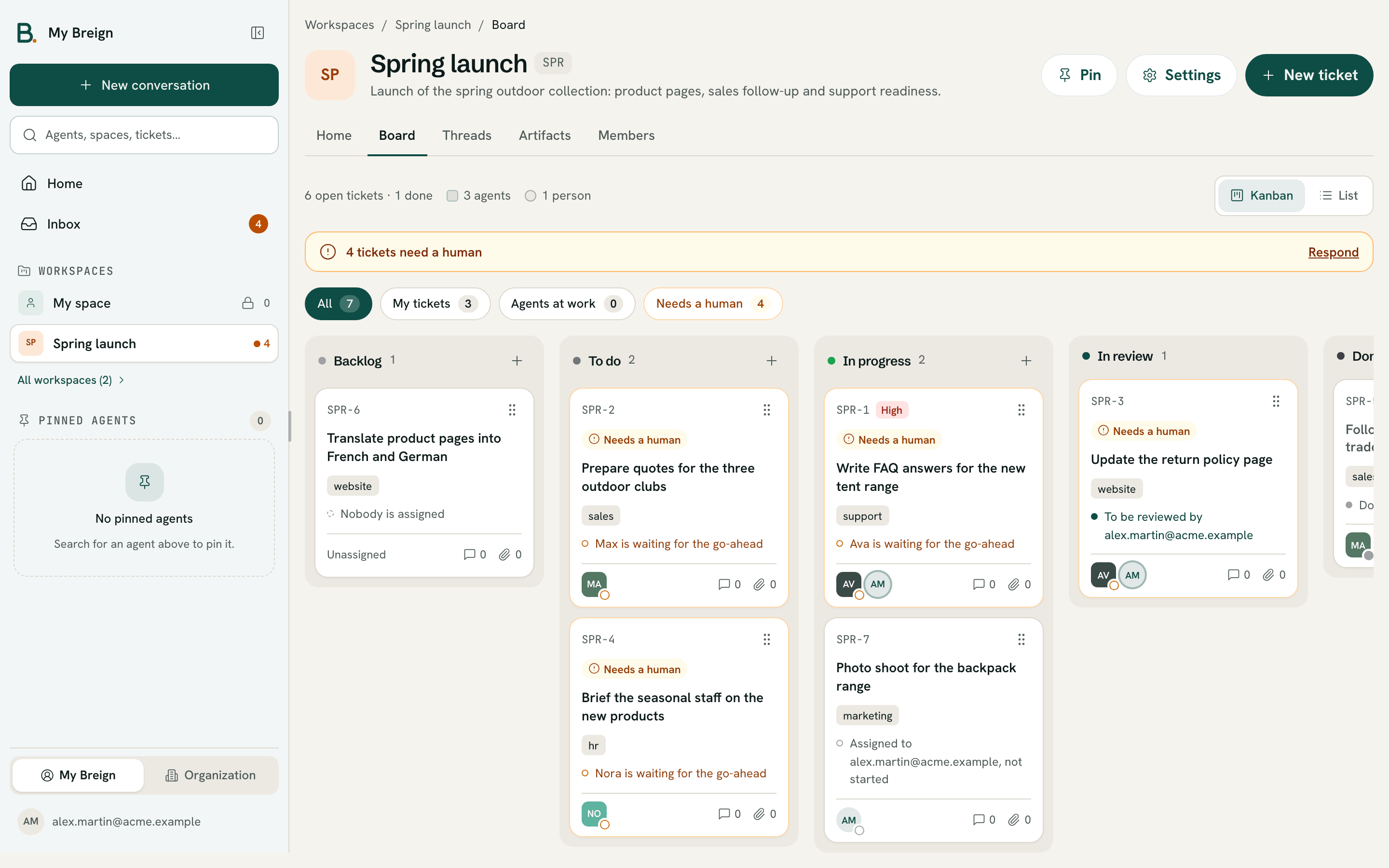
A workspace has five tabs:
- Home: what is Waiting for you in this workspace, the Progress towards the due date, the Agents right now (working, paused, blocked, waiting for a go-ahead), the Recent activity, the members and a summary of the Workspace rules.
- Board: the tickets. See below.
- Threads: each ticket as a thread, with the sessions agents ran on it. Pick a thread to read what each agent did, step by step.
- Artifacts: the files attached to the workspace's tickets. See Find artifacts.
- Members: who belongs to the workspace.
Pin adds the workspace to your sidebar.
Use the board
- Kanban shows the columns Backlog, To do, In progress, In review and Done. Drag a ticket to change its status (keyboard works too: Space to pick, arrows to move, Space to drop).
- List shows the same tickets as a table you can search and filter by status.
- The filters All, My tickets, Agents at work and Needs a human narrow the view. When tickets need a person, a banner offers to Respond.
- New ticket, or Add a ticket to {column} under a column, creates a ticket. See Tickets.
A ticket that has a reviewer can't be dragged to Done: it gets there once its reviewer closes it.
Find artifacts
The files that people and agents attach to tickets are gathered in artifact libraries, so you don't have to open each ticket to find a deliverable:
- In a workspace, the Artifacts tab lists those of all its tickets.
- On an agent, the Artifacts entry of its menu lists the files it attached to tickets, in the workspaces you can read.
- On the Organization side, Artifacts (administrators only) lists those of every shared workspace, for review and compliance. Other members' personal workspaces aren't included.
In a library:
- Type in Search by name… and pick a File type: All, Text, PDF or Images.
- Click an artifact to open it, or its ticket key to open the ticket.
- Artifacts come newest first; Show more loads the next ones.
Libraries are available when workspaces are enabled on your platform.
Manage members
On the Members tab, workspace owners and organization administrators can:
- Add members: agents or people.
- Give each person the role Workspace owner or Contributor. Owners change settings and members; contributors create, assign and review tickets.
- Set, per agent, how it may create tickets: follow the workspace rule, With a member's confirmation, or Directly.
- Click Save members.
Change settings, archive
Owners and administrators click Settings on the workspace to change its name, description, due date and rules. Two more rules apply to autonomous agents:
- Work of assigned agents: They work on their own or Only when talked to.
- Assignment of an agent by another agent: After an owner's go-ahead or Directly, the agent starts.
Archive workspace removes it from the list and stops new tickets; its history is kept. Restore workspace brings it back.
If something goes wrong
- "This prefix is already used by another workspace in the organization.": choose another prefix.
- "The workspace must keep at least one owner.": give the owner role to someone else before removing or demoting the last owner.
- "This workspace is archived.": restore it before adding tickets.
- You don't see Settings: only workspace owners and organization administrators can change them.