Chat with an agent
The chat is the quickest way to use an agent: ask it something, send it a document, and get an answer that can draw on its tools, skills and knowledge.
Before you start
- You need the Chat with agents permission (members have it by default).
- The agent must be active. A deactivated agent doesn't reply. See Manage agents.
Main conversation or new session
Each agent gives you two ways to talk to it:
- The main conversation is a single thread with that agent that continues over time. Use it for an assistant you talk to every day.
- A session is a separate conversation for one topic. Create as many as you want; each starts from a clean context.
Sessions are private: only you can open them.
Start a conversation
- Go to My Breign and click New conversation (or Home).
- Choose the agent in the dropdown next to the message box. Pinned agents come first.
- Choose New session (the default) or Main conversation.
- Type your message and press Enter.
You can also click a pinned agent in the sidebar to open its main conversation, or click one of its sessions under it.
On the Organization side, every agent page also has a Chat with the agent bubble, handy to test an agent while you configure it.
Write a message
- Enter sends, Shift+Enter adds a new line. The expand button opens a full-screen editor where Ctrl/⌘+Enter sends.
- To attach a document, click File or drag and drop it into the conversation. Accepted formats: .md, .txt, .pdf, .doc/.docx, .xls/.xlsx, .csv, .ppt/.pptx, images (.png, .jpg) and audio (.mp3, .wav, .m4a, .ogg, .webm). If the agent's model understands audio (Audio input), it hears the file as is; otherwise the audio is transcribed into text first (25 MB max).
- For a scanned PDF, turn on OCR before sending: each page is read again as an image. The switch only appears if your organization configured OCR.
- Type / to list the agent's commands, such as
/compactor the commands of its skills. - If the agent shows Suggested questions, click one to send it.
Keep a long conversation on track
In a long conversation the agent rereads only the latest messages. Type /compact and send it: the agent summarizes the conversation so far, and from then on works from that summary and the messages that follow. Earlier messages stay on screen.
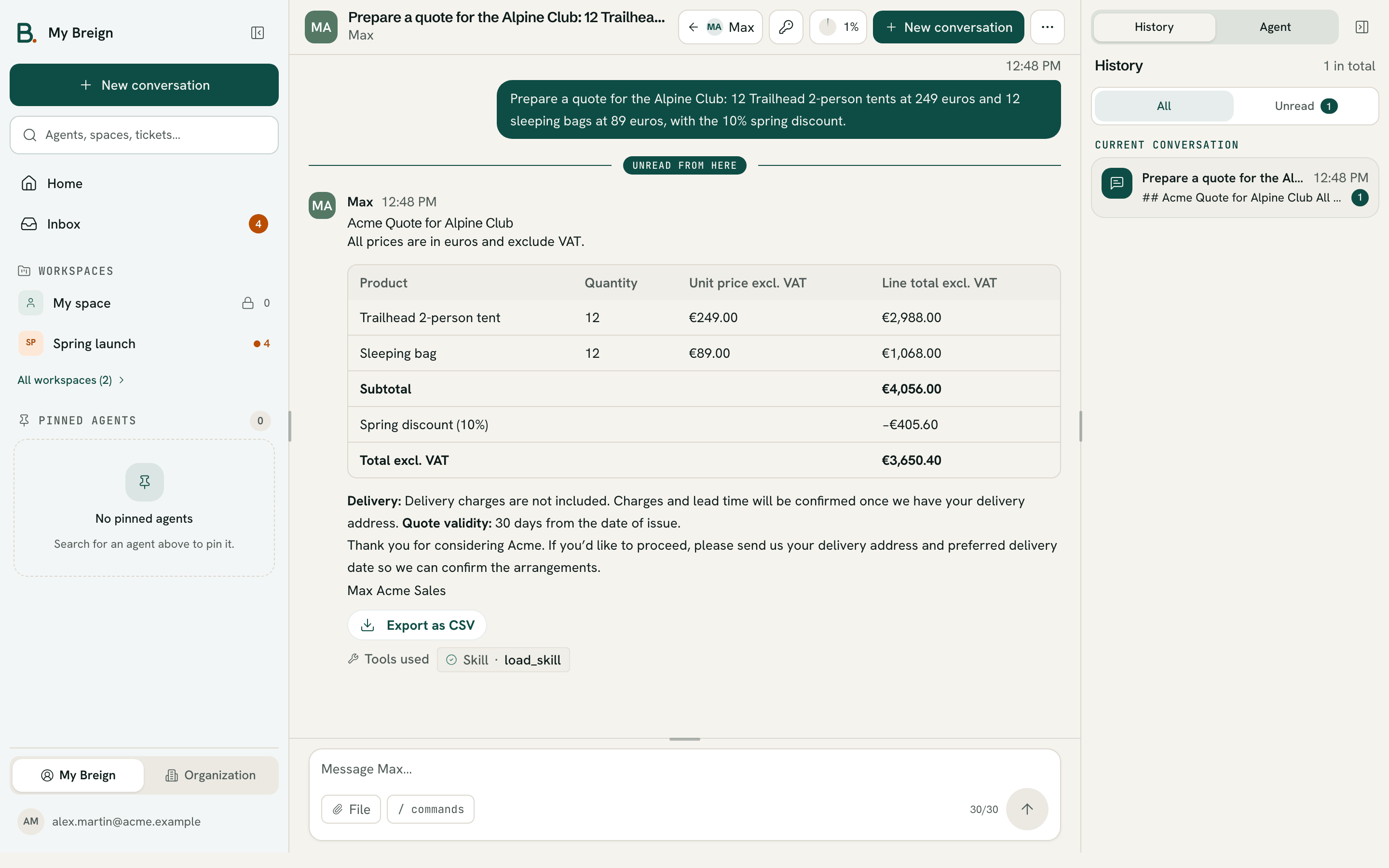
The small gauge at the top of the conversation shows how much of the model's context window (the amount of text the model can take in at once) the conversation uses. Click it to see the tokens used, the window size and the model. It turns orange from 75% and red from 90%. It is only an indicator: nothing happens automatically when it fills up. Compact the conversation or start a new one.
Follow the reply
While the agent works you see it think, run tools, and write. Expand tools used under a reply to see what it did. Tables come with an Export as CSV button.
If you scroll up while it writes, the conversation stops following; click Back to bottom to follow it again.
Along the way, the agent may put a card in the conversation:
- This agent wants to run a command, …to reach an address or …to use {server}: it needs your permission. See Approve what an agent asks to do.
- A few questions: a short questionnaire. Pick your answers, use Other to write your own, then Submit.
- {agent} needs you: a question it can't move on without. Click Answer, or I don't know to let it go on with its own assumption.
- Ticket proposal: the agent offers to turn the request into a ticket. See Tickets.
- A file card: the agent produced a file. See Open, edit and download files your agent creates.
- A queue card (Queued, Waiting for {node}, Running on {node}): the agent runs on one of your machines. See Choose where your agent runs.
Rate a reply with Helpful answer or Unhelpful answer. Your feedback is visible in the agent's conversation history.
The side panel
Click the info button to open the panel on the right:
- History: your sessions with this agent, by date. Search them, or show only Unread ones.
- Agent: description, built-in capabilities, custom tools and linked agents. Pin to my list adds the agent to your sidebar.
- Files: the files of this conversation, when the agent has a sandbox.
Organize your sessions
Open the ⋯ menu at the top of the conversation:
- Rename session: give it a clear title.
- Archive session: removes it from your lists. Archiving the main conversation starts a fresh one and deletes its working files.
- Delete session: deletes it permanently.
In the main conversation, New conversation archives the current thread and starts a fresh one. Click Undo in the message that appears if you clicked by mistake.
Context (key icon) sets the conversation's context variables. See Context variables.
If something goes wrong
- "This model does not support images": the agent's model has no vision capability. Ask the agent's owner to pick a model that does. See Choose your agent's AI model.
- "The file exceeds the maximum allowed size" or "…is too large for the model context": split the document or send a shorter extract.
- "No transcription model is available to read the audio": your organization has no speech-to-text model. Ask an administrator to add one on an AI engine, or use an agent whose model understands audio.
- "The audio … is over 25 MB": split or compress it (mp3).
- "Too many requests. Try again in {s}s.": you reached your organization's agent limits. The counter next to the message box shows how many messages you have left.
- "Save or complete context variables before sending a message.": a skill expects context variables you haven't filled in. Open Context.
- "The agent could not reply." or "The agent did not reply in time.": try again. If it keeps happening, the agent may be deactivated, a guardian may have blocked the message, or the agent waits for something the interface can't provide (see Computer use).
- "Tracking interrupted: the reply may still be running on the server.": click Reload the reply.
- The gauge says "approximate value": the model's context window size isn't known. An administrator can set it on the model. See AI engines.
- "Nothing to compact": send at least one message before using /compact.