Users, roles and permissions
You decide who belongs to your organization and what each member can do. What a member can do comes from their access roles: each role is a set of permissions, and a member's permissions are the sum of their roles.
Every organization starts with two system roles:
- an administrator role, with every permission;
- a user role, that can chat with agents and view agents, applications, knowledge bases, skills, tools, flows, engines and moderators, but change none of them.
Create your own roles for anything in between, for example "Agent builder" (can create and update agents, tools and skills) or "Knowledge editor" (can add files to knowledge bases).
Before you start
- Viewing members needs View users; inviting, updating and removing need Invite a user, Update a user and Remove a user. Managing roles needs Manage access roles.
Invite a member
- On the Organization side, open Settings, then Users.
- Click Invite user, enter the person's email address and click Send invite.
You see "Invitation sent to {email}". The person signs in with a code sent to that address. See Sign in.
Give a member their roles
- On the Users page, select the member in the list (use Search user if needed).
- In Access roles, tick the roles the member should have. System roles carry a System badge.
- Click Save roles. You see "Roles updated". The change takes effect immediately.
Create or change a role
- Open Settings, then User roles & permissions.
- Click Create role, enter a Role name and a Description, and click Create.
- Under Role permissions, turn on the permissions the role grants. Permissions are grouped (Agents, Apps, AI engines, Execution, Flows, Knowledge bases, Moderation, Organization, Skills, Tools, Users); All and None set a whole group. Some permissions are Derived: they follow another one automatically.
- Click Save.
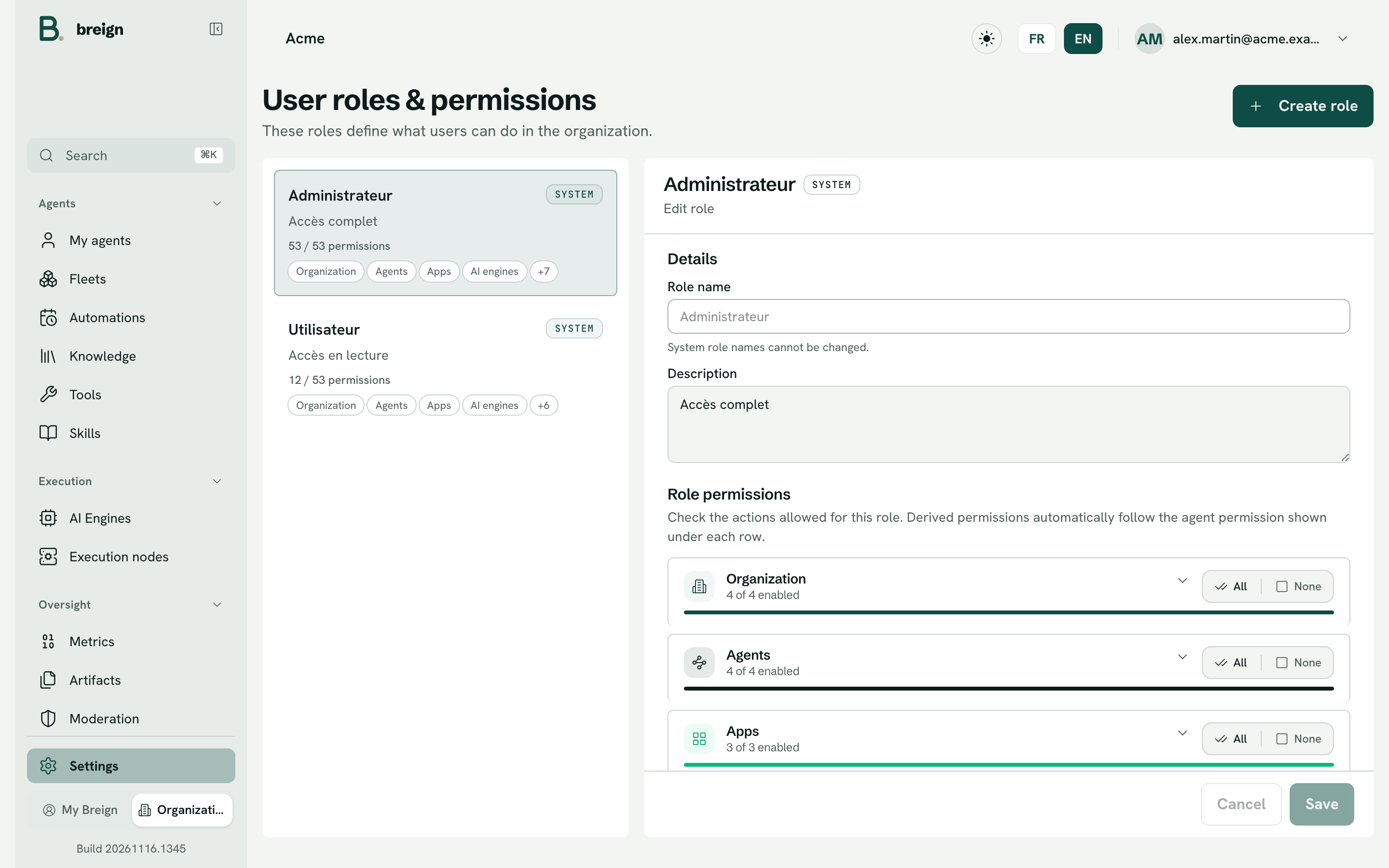
System roles can't be renamed. Deleting a role removes its permissions from members who only had that role.
A few actions still require the administrator role itself, whatever the permissions: managing integrations, OAuth applications and agent limits, installing fleets and marketplace agents, sharing an agent, the consumption view of metrics, model prices and per-member model access.
Remove a member
- On the Users page, select the member and click Delete user.
- Confirm. The member loses access to the organization.
If something goes wrong
- "This user already belongs to the organisation": that email is already a member.
- "You cannot delete an administrator.": remove the administrator role from the member first, then delete them.
- You don't see Users or User roles & permissions: your roles don't include the permissions above.
- A member sees "Access denied": their roles lack the permission that page needs. Add it to one of their roles.