Manage agents
The My Agents page lists the agents you can see, and lets you turn them on or off, copy them, move them between organizations, install ready-made ones and remove them.
Before you start
- Viewing needs View agents. Creating, importing and installing need Update agents; deleting needs Delete agents. By default only administrators have them.
Find an agent
- Type in Search for a word or description.
- Click Filter to filter by role, Agent type or creation date; Reset filters clears them.
- Sort by Recently added, Agent name or Agent role, and switch between grid and list view.
- Use the visibility chips (My agents, Public, Shared with me, Personal…) to choose which agents you see. See Agent visibility.
Activate or deactivate an agent
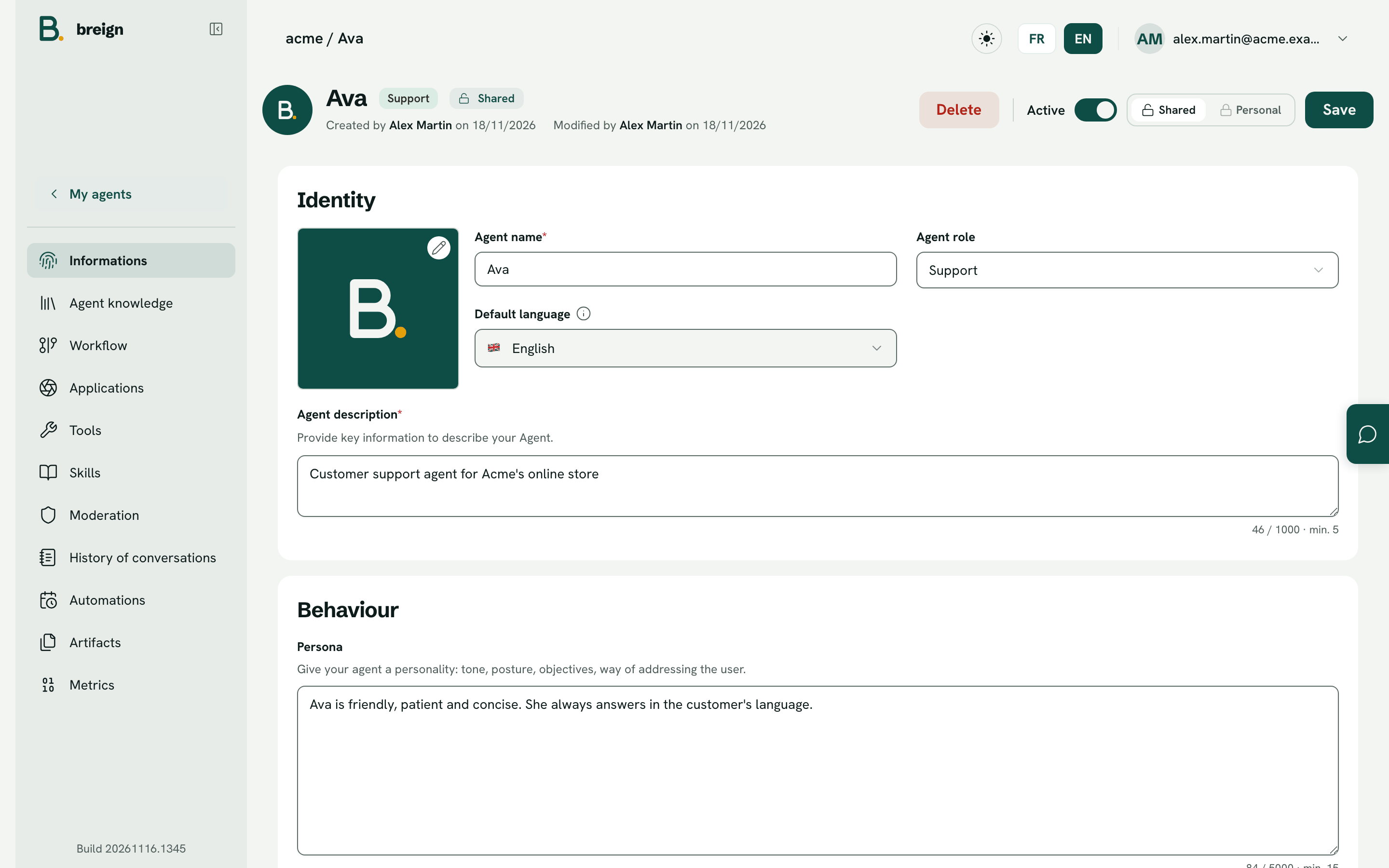
Use the Active switch on the agent's card, or in the header of its page, and confirm. A deactivated agent stops responding everywhere (chat, applications, automations) until you reactivate it.
Duplicate an agent
- On the agent's card, open the … menu and choose Duplicate.
- Tick what to copy: Knowledge base (ticked by default), Flows, Tools, Moderation (guards). Copying flows also copies tools.
- Click Duplicate.
The copy is Personal and belongs to you.
Export and import an agent
Export lets you keep a copy of an agent or move it to another organization.
- Export: on the agent's card, open the … menu and choose Export. You get a YAML file with its configuration, flows, tools and skills.
- Import: click Import an agent, choose the Export file (.yaml, .yml or .json, up to 1 MB) and click Import.
After an import, a recap lists what needs your attention: tools not found in this organization (not linked), skills or knowledge bases created (empty), applications whose voice key must be set again, or a model not found (the organization default is used). Click View agent to finish the setup.
Install an agent from the marketplace
- Click Marketplace.
- Browse or search the agents, check what each one brings (skills, tools, knowledge bases, applications, flow) and pick a version.
- Click Install. Installing requires organization administrator rights.
An installed agent is managed by the marketplace: its configuration is replaced by a panel that shows its version. When a new version exists, click Update to v{n} to review the changes and apply them. Detach from the marketplace makes it a regular agent you can edit freely; it no longer receives updates.
Delete an agent
- On the agent's page, click Delete (or use the … menu on its card).
- Confirm. This action is irreversible: export the agent first if you might need it again.
Deleting your own personal agent is allowed; deleting a shared agent or someone else's needs an organization administrator.
If something goes wrong
- "Unsupported format version." or "Invalid file or unsupported format.": the file wasn't exported by a compatible version of Breign. Export it again from an up-to-date organization.
- "The file exceeds 1 MB.": remove large inline content (for example long skills) before importing.
- "Installing an agent requires organization admin rights.": ask an administrator to install it.
- You can't edit a marketplace agent: it's managed by the marketplace. Detach it first.