Metrics
Metrics show how much your agents are used, how tokens are consumed, how satisfied users are, and what it costs: for the whole organization, and for each agent.
Before you start
- You need the View metrics permission. The AI Gateway section needs View AI Gateway metrics; the Consumption section is reserved for administrators.
Organization metrics
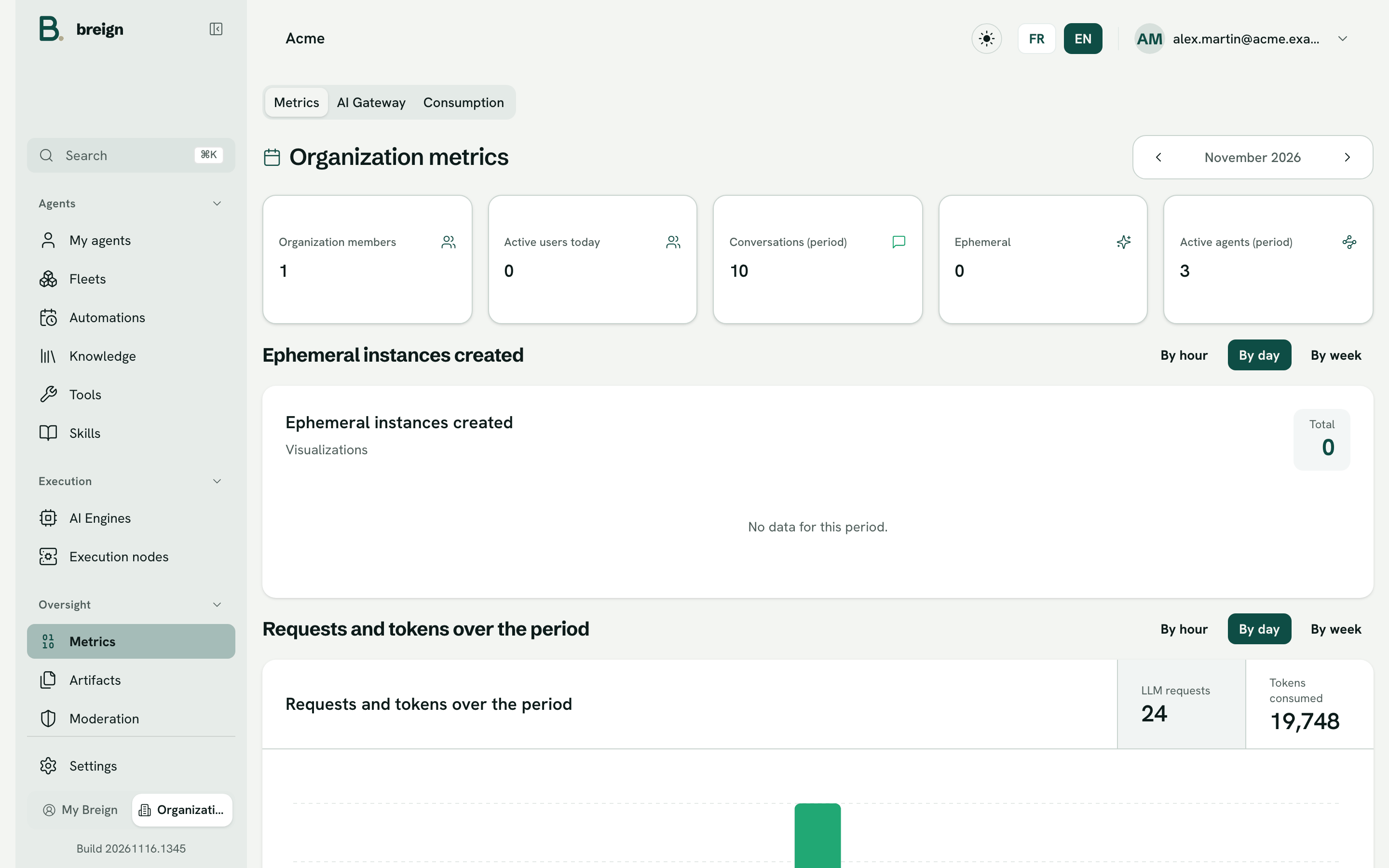
- On the Organization side, open Metrics.
- Choose the month with Previous month, Next month or Today.
- Switch between the sections:
- Metrics: active agents, conversations, ephemeral instances, members and active users; requests and tokens over the period (By hour, By day, By week); active users by month; the top agents by conversations and by unique users. View metrics opens an agent's own metrics.
- AI Gateway: calls made through the AI Gateway.
- Consumption (administrators): model consumption by model and by provider, by source (agents, AI Gateway, knowledge bases) and by user. Search a model, an agent or a user.
Agent metrics
- Open the agent and go to its Metrics tab.
- Choose the period and the granularity.
- Read:
- conversations (text and voice), unique users, abandoned conversations, and the change versus the previous period;
- the satisfaction rate, from users' thumbs up and down;
- LLM requests and tokens consumed, by input / output / reasoning, by model and by task (answer, text-to-speech, tool execution, intent detection, flow evaluation, suggestions…);
- the breakdown by app, the most-used tools, ephemeral instances;
- Rate limiting: requests rejected by agent limits;
- the subscription and additional costs.
- Click Export CSV to download the figures for the period.
If something goes wrong
- "No data available": there was no activity in that period. Choose another month.
- "No active subscription": some cost figures depend on your plan. Contact your Breign representative.
- Costs show zero: the models have no price. An administrator can set them on the AI engine.