Tools and MCP
A tool connects your agents to an external service: GitHub, GitLab, Notion, a CRM, a web search, your own API. You add a tool once for the organization, connect it, then link it to the agents that need it.
Breign supports three kinds of tools:
- MCP servers (Model Context Protocol), from the catalog or with a custom URL. We recommend MCP whenever the service offers it.
- OpenAPI APIs: Breign turns an OpenAPI definition into agent actions. See Tools from an OpenAPI definition.
- Custom API: a tool described by an ai-plugin manifest (
.well-known/ai-plugin).
Before you start
- You need the Create a tool permission. By default only administrators have it.
- Have the service's details at hand: its address (for a custom MCP), and an API token or the right to create an OAuth application if it requires authentication.
Add a tool from the catalog
-
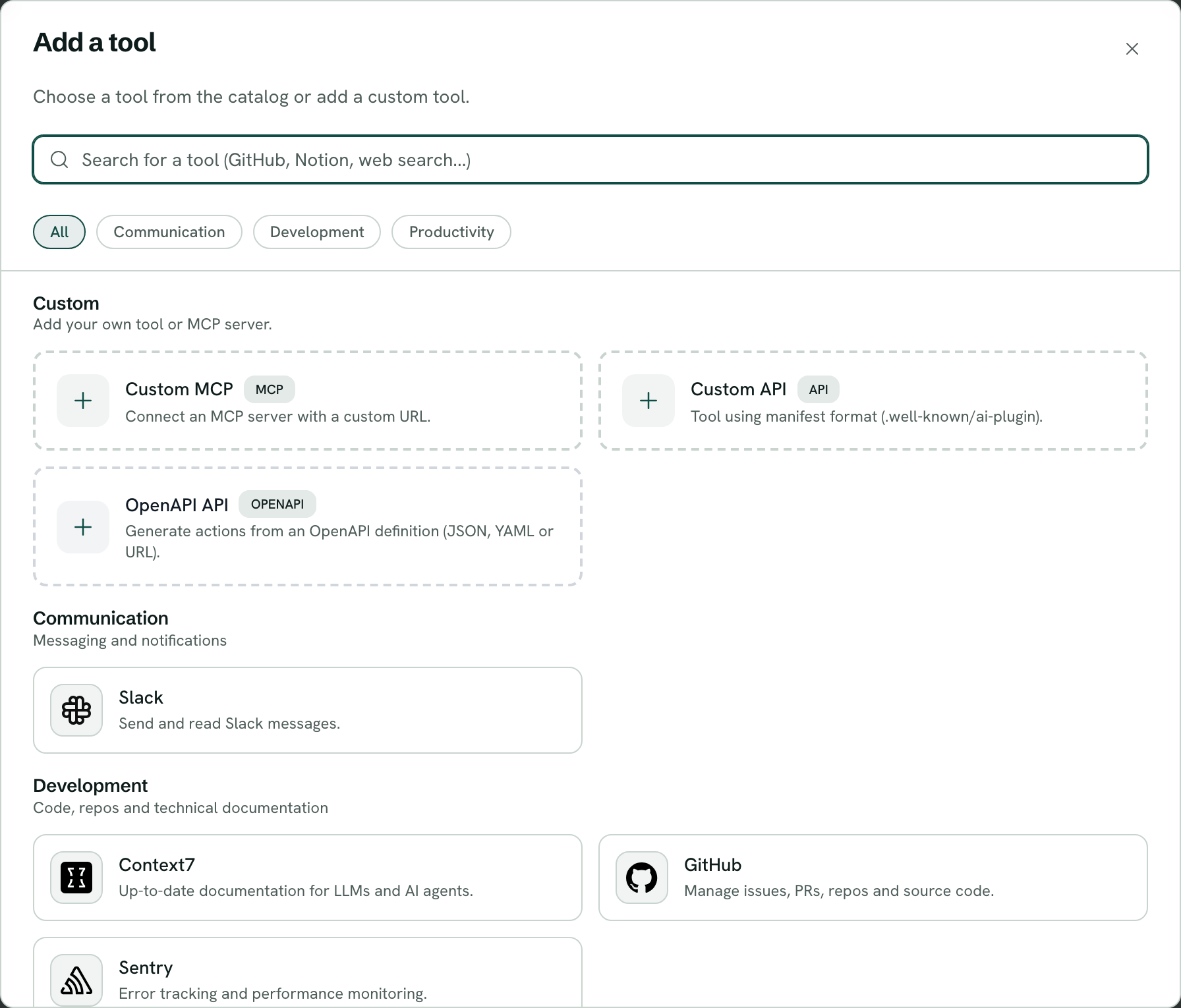
On the Organization side, open Tools and click Add a tool.
-
Search the catalog (for example "GitHub") or browse its categories. Click the service.
-
Fill in the template's configuration options, if any. For a self-hosted service (GitLab, Outline…), that's usually your instance address.
-
Optionally click Customize name and description.
-
Choose the Authentication method:
- None: no authentication required;
- Bearer / API Key: paste an API token (it is stored encrypted);
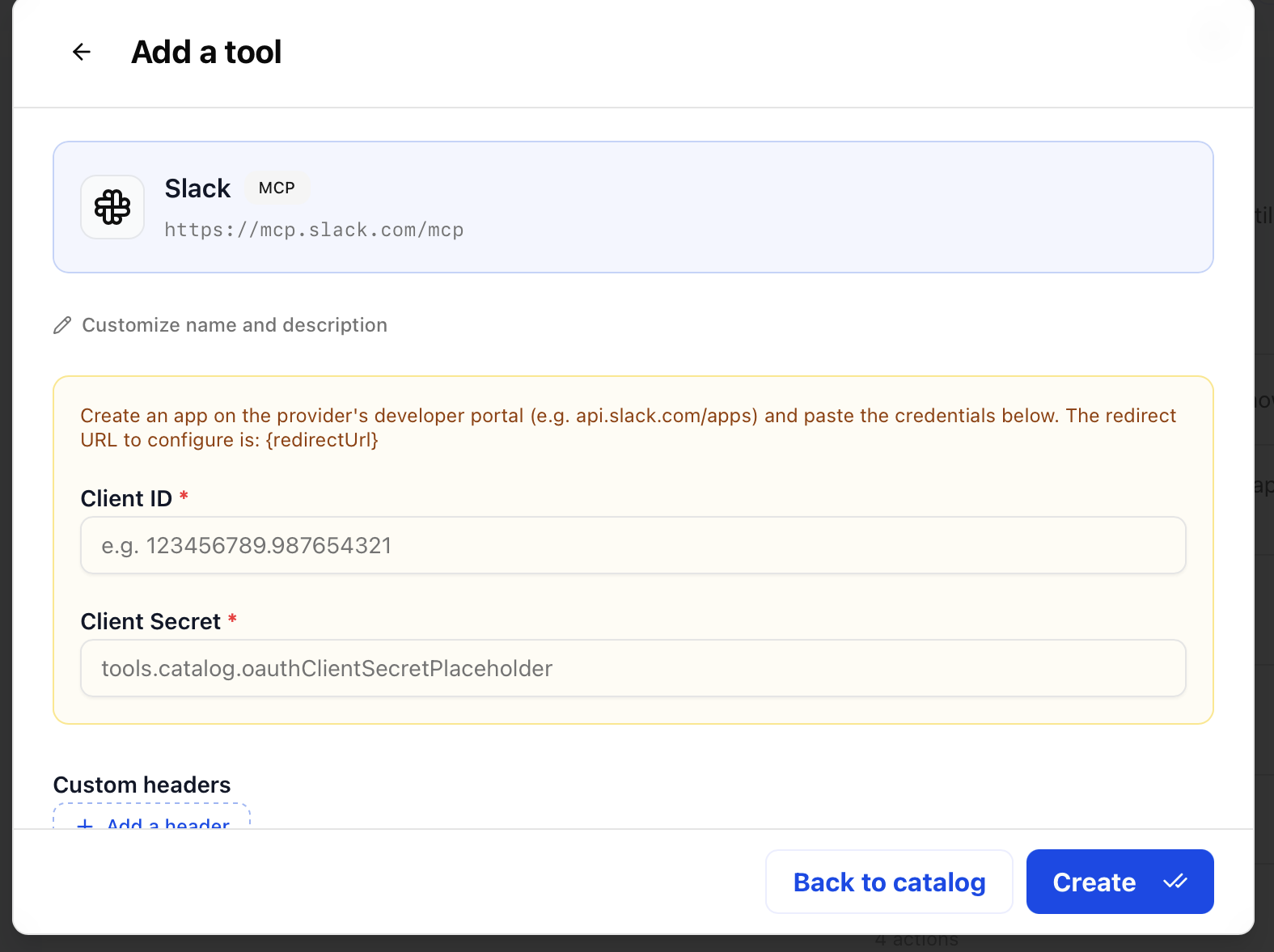
- OAuth: connect through the service. If the service needs you to create an OAuth application first, the form shows the redirect URL to declare at the provider; then enter its client ID and secret.
-
Optionally add Custom headers.
-
Choose the scope (see below). It can't be changed after creation.
-
Click Create, then choose the Authorized actions: the actions agents may use.
Add a custom MCP server
When the service isn't in the catalog:
-
Click Add a tool, then Custom MCP.
-
Enter a Tool name (unique in the organization), a Tool description (to help people recognize it) and the Endpoint (the MCP address, which usually ends with
/mcp). -
Choose the Authentication type:
- None;
- Bearer: enter the Token;
- Header: enter the Header name and Header value;
- Oauth2: most modern MCP servers configure themselves. If the vendor gave you an OAuth client ID (and secret), enter them in the optional fields.
-
Optionally add Extra headers (JSON format).
-
Choose the scope, then click Create.
-
For OAuth2: click Setup OAuth2 Authentification, then Connect tool to authorize access in the window that opens.
Shared or personal connection
When the tool needs authentication, you choose once, at creation, whose account it uses:
- Organization: a single connection shared by every agent and every user. Use it for services without user-specific data (a public search, a shared knowledge tool). An administrator connects it with Connect tool.
- Personal: each user connects their own account. Use it for services with personal data (mail, calendar, a GitLab account). The first time an agent uses the tool, the user is asked to connect, then uses Connect my account (OAuth) or Save my token (token) on the tool.
Control what agents may do
Open the tool on the Tools page:
- Authorized actions: tick the actions agents may use at all.
- Approval in the conversation, per action: run automatically, Always ask the user first, or Never ask. By default, read-only actions run on their own and others ask.
- Refresh: when the service adds actions, Breign lists them ("{n} new action(s) available"). New actions are not allowed until you tick them.
Then, per agent, the Methods column of the agent's Tools tab can narrow the list further. See Equip your agent.
Check what tools do (administrators)
MCP logs shows the calls agents made to MCP servers, with their status. Turn on All activity for more detail, and Capture payloads to record call arguments and responses (secrets are redacted) while you investigate. Clear logs empties the list. Logs are kept for a limited number of days.
If something goes wrong
- "A tool with this name already exists in the organization.": choose another name.
- "Authentication rejected by the MCP server.": the token is wrong or expired, or the OAuth connection was revoked. Replace the token or connect again.
- "Please allow popups for this site to continue OAuth2 authentication.": allow pop-ups for Breign in your browser, then click Connect tool again.
- "Fill in "{label}"." or "… must be an http(s) address…": a configuration option is missing or isn't a plain web address (no
?or#). - "Unable to load the manifest…" (Custom API): check that the manifest address is reachable.
- An agent doesn't see the tool: link it to the agent, and check that the action is authorized and that the agent's model supports tool use.