Equip your agent with tools, skills and knowledge
Tools, skills and knowledge bases are created once for the organization, then linked to the agents that need them. This page shows how to link them from the agent's tabs.
Before you start
- The tool, skill or knowledge base must already exist in your organization. See Tools and MCP, Skills and Knowledge bases.
- Turn on the agent's tool loop so it can use them over several steps. See Agent capabilities.
- The agent's model must support tool use.
Link a tool
- Open the agent and go to its Tools tab.
- Click Add tool to agent, search the tool and click Add. You see "Tool linked to agent successfully."
- Optionally, limit what the agent may do with it: in the Methods column, click the count (All or
x / y), untick the actions it shouldn't use, and Save. Only organization administrators can change this.
To remove a tool, click Unlink from agent. The tool stays in the organization.
If the tool connects with each user's own account, the user is asked to connect the first time the agent uses it.
Enable a skill
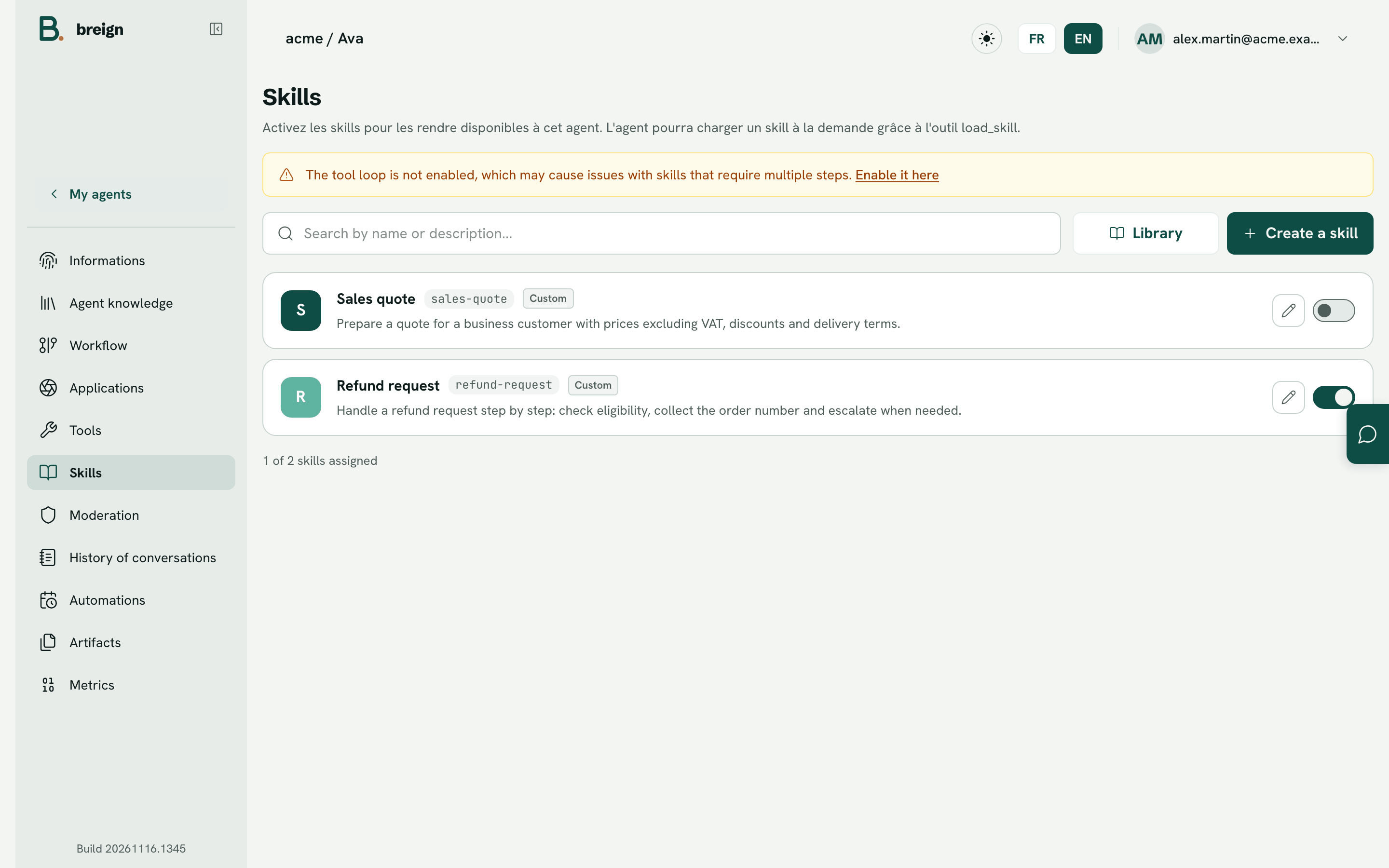
- Go to the agent's Skills tab.
- Turn on the switch of each skill the agent may use. The footer shows how many are assigned.
- Need a new one? Create a skill opens the editor; Library installs one from the shared library.
A Library badge marks skills installed from the library; Update to v{n} appears when a newer version exists.
Connect a knowledge base
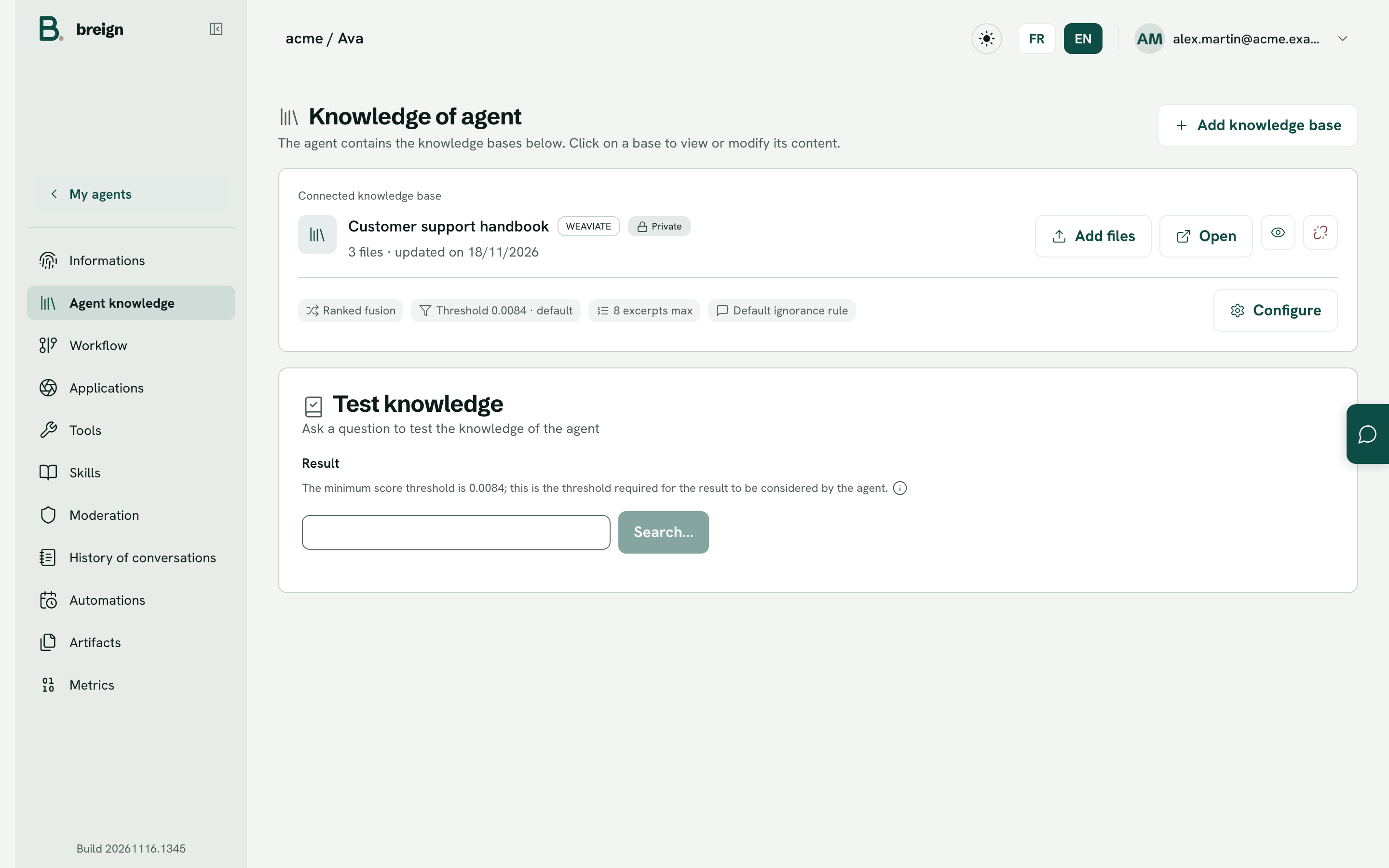
- Go to the agent's Agent knowledge tab.
- Click Connect a base (or Add knowledge base) and choose an organization base. An agent can use up to two knowledge bases.
- On the base's card, Configure tunes how the agent searches it (minimum score, number of files, extra answer instructions).
- Use the test panel to ask a question and see which passages the agent would find.
Remove from the agent unlinks a base; the base and its files are kept.
Result
The agent can call the tools you linked, load the skills you enabled and search the knowledge bases you connected, from its next message.
If something goes wrong
- "The tool loop is not enabled, which may cause issues with skills that require multiple steps.": click Enable it here.
- No Add tool to agent button: it needs the Create a tool permission.
- "This MCP server has not been introspected yet" in Allowed methods: open the tool on the Tools page and click Refresh, then try again.
- The agent doesn't use a base or a tool: check that its model supports tool use, and that the base allows this agent (see Knowledge bases).