Conversation history
The history lets you look back at an agent's conversations: check its answers, see which tools and skills it used, what it cost, and read the feedback users left. Use it to improve an agent and to investigate a problem.
Before you start
- You need the View agents permission on the agent.
- Conversations with an agent that has Hide conversations from history turned on aren't shown. See Agent capabilities.
Steps
-
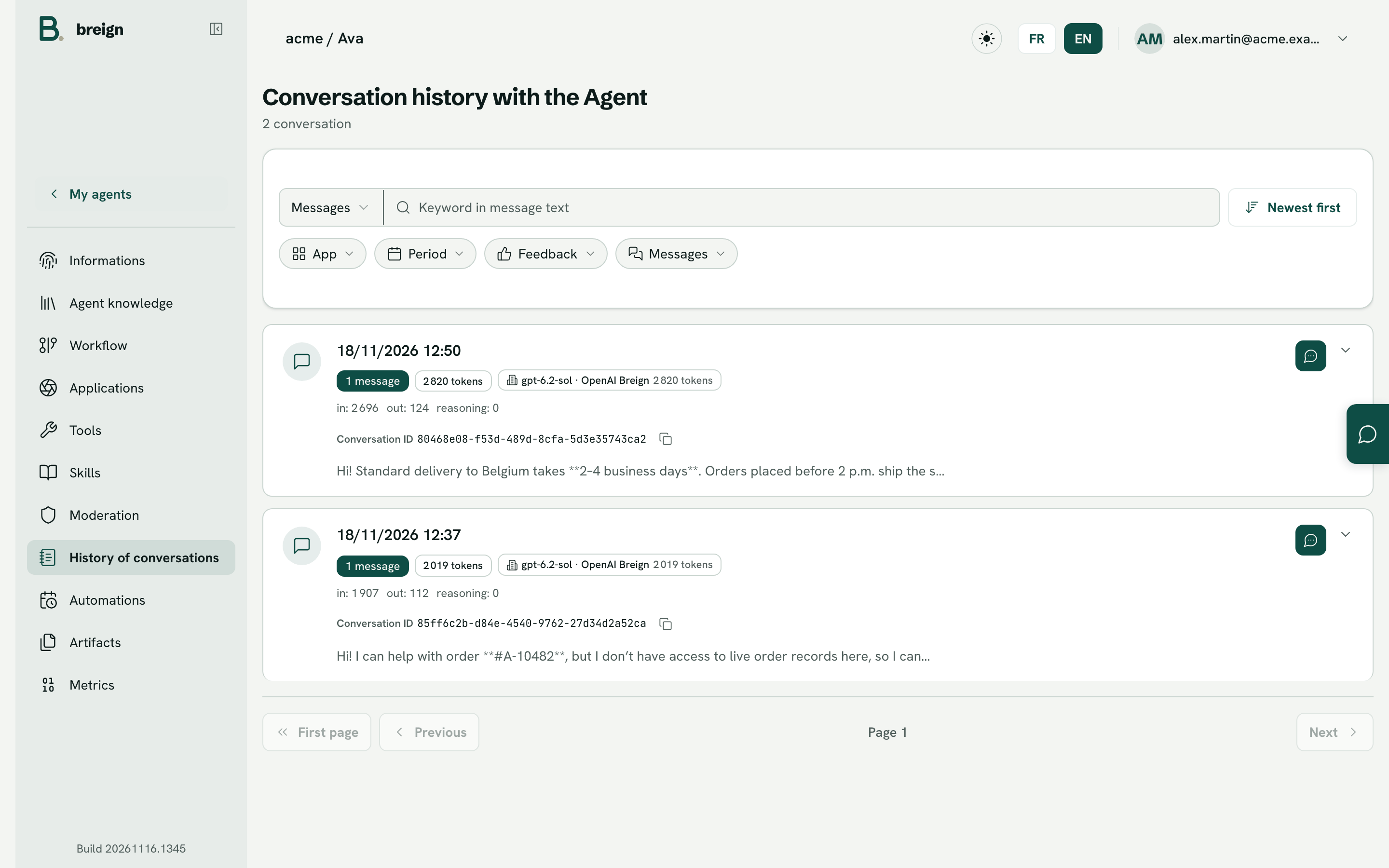
Open the agent and go to its History of conversations tab.
-
Sort with Newest first or Oldest first.
-
Search: choose what to search in (Messages for a keyword, User by email or custom ID, Conversation or Message by ID) and type.
-
Narrow the list with the filters:
- Period: last 24 hours, 7 days, 30 days, or a date range;
- Messages: the number of messages in the conversation;
- Feedback: with positive or negative feedback;
- App and instance.
Reset clears them.
-
Click a conversation to open it.
What you see in a conversation
- Each message by role, with the Feedback left on replies, its cost and tokens (in, out, reasoning), and the Model used.
- Tools used, with each request and result, and the skills the agent loaded.
- Intents, suggestions and attachments. Delete audio removes a voice recording.
- Show reasoning, Show technical information, Show JSON and the raw conversation, for investigation.
- The context: Context variables of the conversation (you can edit them and Save), Instance context, and Context used, the merged values the agent actually received. See Context variables.
The chat icon on a conversation reopens it in the Chat with the agent bubble, to continue it.
If something goes wrong
- No conversation found: the agent hasn't been used yet, or a filter hides them. Click Reset.
- "Enter a whole number, 0 or more.": the messages filter needs a whole number.
- An attachment or audio shows as unavailable: the file was removed or has expired; the rest of the conversation is still readable.